Edit & Resize
Per-image resize controls — set target dimensions, crop mode, and output format before batch processing.
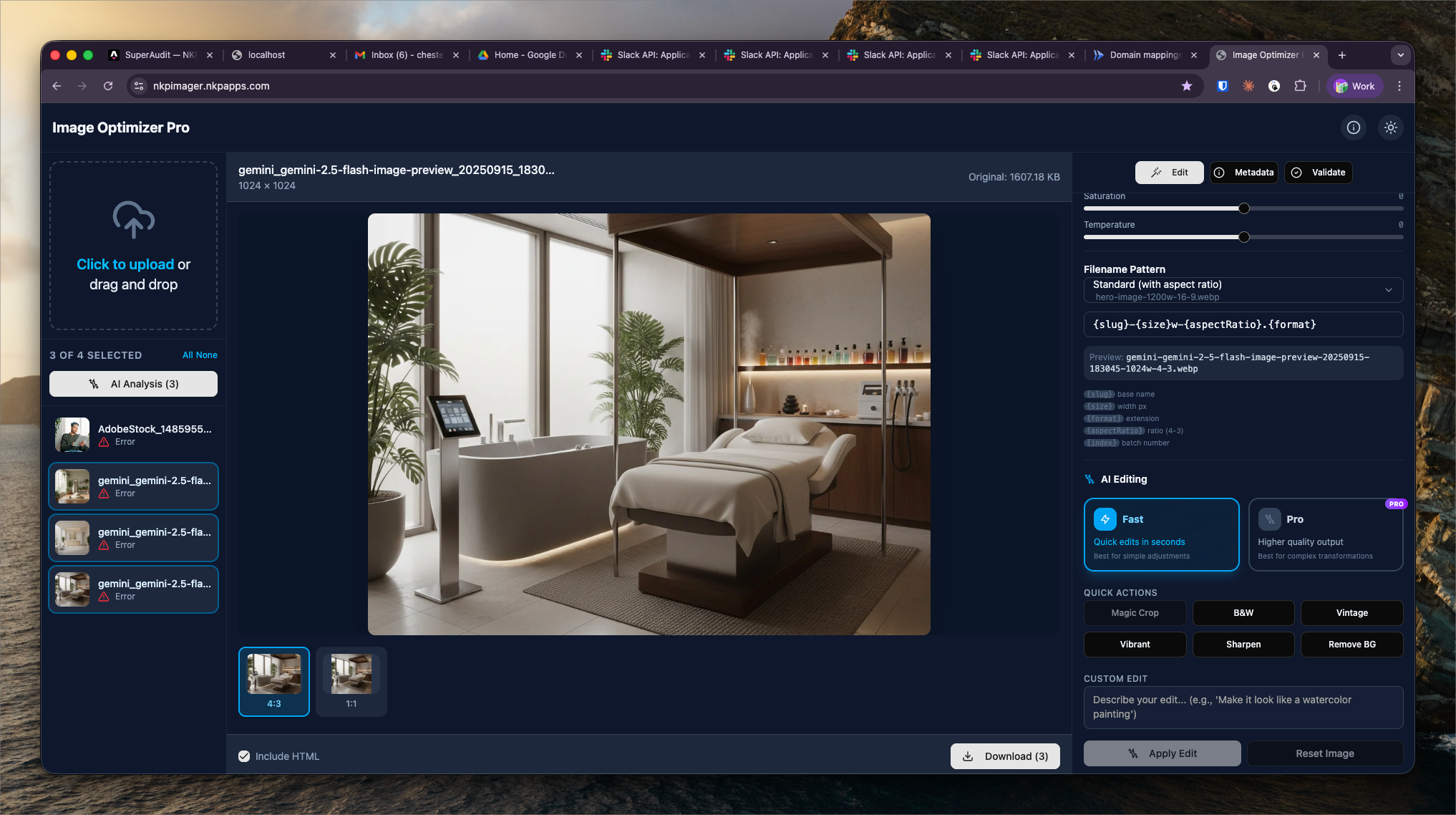
What It Shows
The Edit & Resize view opens after uploading images and before submitting to the processing queue. It shows a preview of each image with controls for setting target dimensions, crop behavior, and output format on a per-image basis.
Controls per image:
- Width / Height — target output dimensions in pixels
- Maintain aspect ratio — lock toggle to prevent distortion
- Crop mode — Cover (fill target, crop edges), Contain (fit within target, add padding), or Stretch (ignore aspect ratio)
- Format override — change format for this specific image
Resize Presets
Common NKP use cases have predefined presets:
- Hero image — 1920×1080, cover crop
- Service card thumbnail — 800×600, cover crop
- Doctor headshot — 400×400, cover crop (face-centered)
- Blog featured image — 1200×630, cover crop (social-share optimized)
Selecting a preset auto-fills the dimension fields. Custom dimensions can be entered manually for non-standard requirements.
Batch vs. Per-Image
The Edit & Resize view allows applying the same settings to all images at once ("Apply to all") or configuring each image individually. For batches of images with different use cases (some heroes, some thumbnails), per-image configuration is necessary. For uniform batches (all blog thumbnails), "Apply to all" is faster.